
View Program Setting History
Overview
Program Settings are global configuration options within the Loyaltyplatform used to control many different aspects of your loyalty program, such as enabling features, customizing screens, and configuring platform behaviors. The Program Setting History screen is intended to provide visibility into the changes made to tracked Program Settings, by displaying what changed, when, and by whom.
For a Program Setting to be tracked and logged on the Program Setting History screen, it must first be allowlisted within your Loyalty environment. The process of allowlisting a Program Setting is configurable per client via environment-level settings, and is not managed directly from the platform interface. Enabling a Program Setting to be tracked may be handled by your technical team, or with support from your Zeta representative.
Access
To access the Program Setting History screen, select Program from the top navigation bar, then select Settings > Program Setting History from the side navigation menu
View History
At the top of the Program Setting History screen, the platform displays a list of all the Program Settings currently being tracked in your Loyalty account. Once a Program Setting has been allowlisted, the platform begins tracking changes made to the Program Setting parameters from that point forward (the platform does not display any changes made to the Program Setting prior to it being allowlisted).
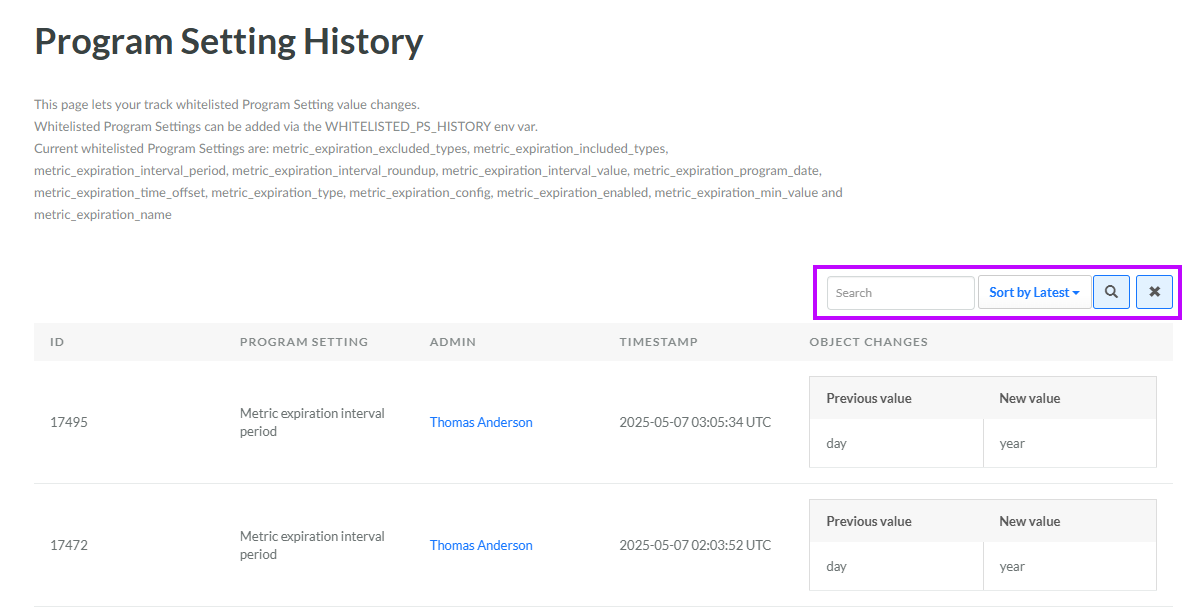
For each tracked change, the platform displays the following information on the Program Setting History screen:
-
ID: A system-generated identifier for this Program Setting modification.
-
Program Setting: The name of the Program Setting that was modified.
-
Admin: The name of the user who modified the Program Setting parameter (if known).
-
Timestamp: The date / time the Program Setting parameter was modified.
-
Object Changes: The previous value of the Program Setting parameter, and its new value after the modification.
Search for a Previous Value
The platform allows you to search the log of tracked Program Settings for a specific "previous value" in a Program Setting parameter (that is, the value of the parameter prior to it being modified).
-
Select Program from the top navigation bar, then select Settings > Program Setting History from the side navigation menu. The Program Setting History screen is displayed.
-
Optionally, in the Search field, enter the desired text string.
-
Click the Search icon. The screen is refreshed to show only the Program Setting changes that contain the search string within a parameter's "previous value."
-
To sort the search results, select the desired sort order from the Sort By drop-down menu. The default sort order is by: Latest (most recent changes first).
-
Optionally, to remove all search criteria and revert to the default criteria, click the Clear icon.
